The Faceless AI Creator Stack: How to Make YouTube Shorts Without Showing Your Face
You don't need a camera, a studio or a radio voice to publish YouTube Shorts. You need a workflow you can repeat every week. This is the exact stack Creator AI Lab runs on, step by step, including what each free plan really lets you do.
Some links in this article are affiliate links. If you buy through them, I may earn a commission at no extra cost to you. How this works.
What “faceless” really means
Faceless means the viewer never sees you. It doesn't mean low effort.
The faceless channels that work still have a point of view, a clear promise and a hook in the first second. AI tools take over the production work: the voice, the visuals, the captions. The thinking stays with you.
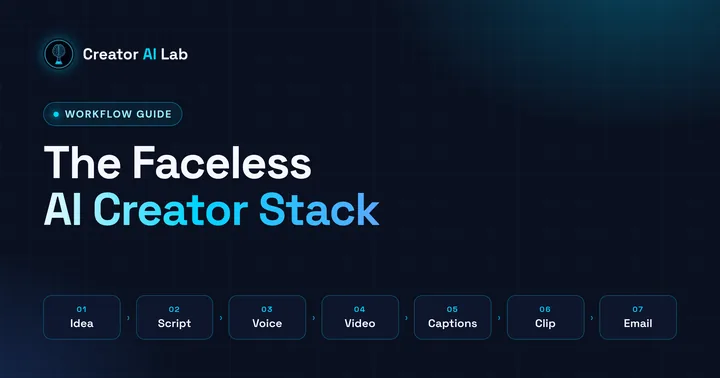
The workflow has seven steps. Steps 1 and 2 are free and happen in a notes app. Steps 3 to 5 are where the AI tools come in. Steps 6 and 7 get more out of every video and help you own your audience.
Step 1: Find an idea people already want
Start with demand, not inspiration. Three free places to look:
- YouTube search suggestions. Type your topic and write down what autocompletes.
- Comments under popular videos in your niche. Questions that keep coming up are video ideas.
- Your own last week. The problem you just solved is someone else's search.
One Short answers one question. If you can't say the idea in one sentence, it's two Shorts.
Keyword tools like vidIQ (affiliate link, opens in a new tab) can speed this up later. It's on my “testing next” list, and you don't need it to start.
Step 2: Write a script that earns the second second
This is where faceless videos win or lose. There's no face to build trust, so the words do all the work.
I use the same four-part structure for every Short:
- Hook (first 1 to 3 seconds). A bold claim, a number or a before and after. No greeting.
- Problem. One sentence the viewer instantly recognizes.
- Solution or demo. The tool or the step, shown on screen.
- Payoff and call to action. The result, then one natural next step.
Keep sentences short. Read the script out loud. Cut every line that doesn't pull the viewer into the next one.
At a normal speaking pace, a 35 to 50 second Short is roughly 90 to 130 words. That's less than you think, so every word has to earn its place.
AI chatbots are great for brainstorming ten versions of a hook. Don't let them write the final script. They average everything out, and average doesn't hold attention.
Step 3: Turn the script into a voiceover with ElevenLabs
ElevenLabs (affiliate link, opens in a new tab) turns text into natural-sounding speech. It's the voice of the Creator AI Lab channel.
The workflow is simple: pick a voice from the library, paste your script, generate, and listen back with headphones.
- Generate in short paragraphs. If one line sounds off, you redo that line, not the whole script.
- Use punctuation to steer pacing. A full stop is a pause. A comma is a breath.
- Keep one voice for the whole channel. Over time, it becomes part of your brand.
Plan check (official pricing, November 2026)
- Free: 10,000 credits per month (text to speech uses about 1 credit per character). No commercial license, and published free-plan content must credit ElevenLabs.
- Starter: $6 per month (first month $1 at the time of writing), 30,000 credits and a commercial license.
If your channel is monetized, or will be, generate your final voiceovers on a paid plan. ElevenLabs says paid-plan audio stays usable commercially after you cancel. Free-plan audio never becomes commercial.
Skip it if you'd rather record your own voice. Then this whole step is a microphone.
Step 4: Turn text into video with Fliki
Fliki (affiliate link, opens in a new tab) takes a script, an idea or a blog post and builds a narrated video from it: scenes, stock visuals, an AI voice, captions and music.
Expect a solid first draft in minutes. Then swap out the visuals that don't fit. That final pass of taste is what makes it yours.
The underrated feature is blog to video. Paste the link to an article and Fliki summarizes it into a scene-by-scene script, then builds the video. You can export in 9:16 for Shorts, 1:1, or 16:9 for long-form. Write once, publish twice.
Want a better first draft? Give each section a clear heading, keep paragraphs short and stick to one idea per paragraph. That's exactly why this article is formatted the way it is.
Fliki also has its own built-in voices, so for quick drafts you can skip step 3. If one consistent voice matters more to you, keep ElevenLabs as your channel voice.
Plan check (official pricing, November 2026)
- Free: 3 credits per month, 720p exports and a Fliki watermark.
- Paid plans: commercial rights are listed from the Standard plan up, along with 1080p exports and no watermark.
Use the free plan to learn the workflow, not for monetized uploads.
Skip it if you need frame-by-frame control, or your videos are real screen recordings. A regular editor fits better there.
Step 5: Add captions with Submagic
Plenty of people scroll with the sound off. Captions keep them watching, and they keep eyes on the screen even when the sound is on.
Submagic (affiliate link, opens in a new tab) generates animated, word-by-word captions for vertical video and adds quick edits like zooms and B-roll.
The workflow: upload, check the transcript, pick a style, export. Always check tool names and numbers. That's where AI captions slip most often.
- Pick one caption style and keep it. Consistency reads as a brand.
- Keep captions out of the bottom of the frame. That's where the Shorts interface sits.
- Highlight one keyword per line, not every word.
Plan check (official pricing, November 2026)
- Free: 15 credits per month, about 5 captioned uploads. Exports carry a Submagic watermark.
- Starter: $19 per month, or $12 per month billed yearly. No watermark, 1080p exports, videos up to 2 minutes.
Skip it if you mostly make long-form videos and rarely need styled captions.
Step 6: Clip long videos into Shorts with OpusClip
Testing next
Once you publish long videos, every one of them is a source of Shorts. OpusClip (affiliate link, opens in a new tab) scans a long video, picks highlight moments, reframes them to vertical and adds captions.
It's next on my test list. The full on-screen test comes once the channel's first long videos are live, so treat this as a preview, not a verdict.
Plan check (official pricing, November 2026)
- Free: 60 credits per month, watermarked clips, and clips can only be exported for 3 days.
- Starter: $15 per month with 150 credits.
Skip it if you don't publish long-form yet. Steps 1 to 5 are enough to start.
Step 7: Own your audience with an email list
Setting up now
Your subscribers live on YouTube's platform, under YouTube's rules. An email list is the one channel you own.
Kit (affiliate link, opens in a new tab) (formerly ConvertKit) is an email platform built for creators, with signup forms, landing pages and automations. I'm setting it up for Creator AI Lab right now. Until it's live, the free stack is on my Beacons page.
Plan check (official pricing, November 2026)
- Free: up to 10,000 subscribers.
- Paid plans: 14-day free trial, no credit card required.
Start the list on day one, even with zero subscribers. The best time to collect your first email address is your first video.
The full stack at a glance
- IdeaYouTube search suggestions and comments (free)
- ScriptA notes app and the four-part structure (free)
- Voice
- Video
- Captions
- ClippingOpusClip (affiliate link, opens in a new tab) (testing next)
- EmailKit (affiliate link, opens in a new tab) (setting up now)
What it costs to start
Nothing, if you're testing. Every tool in this stack has a free plan.
The catch: free plans add watermarks or don't allow commercial use. That's fine for learning. It's not fine for a channel you want to monetize.
If you upgrade only one tool first, make it ElevenLabs Starter. The voice is in every second of every video, and at $6 per month it's the cheapest commercial license in this stack.
Prices and limits were checked on the official pricing pages in November 2026. AI tool plans change often, so always check the current plan before you buy.